Smart Columns
In a regular spreadsheet, every cell is the same: a blank box waiting for someone to type something in. Smart Columns are different. Each column type understands the kind of data it holds and does something useful with it: validating entries, enforcing rules, connecting to other records, triggering workflows, or running entire business processes. Choose the right column type for the job and it handles the rest.
Smart Columns live inside a dataset. If you haven't created one yet, start with Dataset, then come back here to make your columns work for you.
Smart Columns are organized into three categories based on what they do. Standard columns store and organize your core data. Interactive columns let users take action directly from a row. App columns embed complete business processes like payments or approvals into a single cell.
To add a Smart Column, click + Add Column in the column header row and pick a column type. For the full walkthrough, see Working with rows and columns.
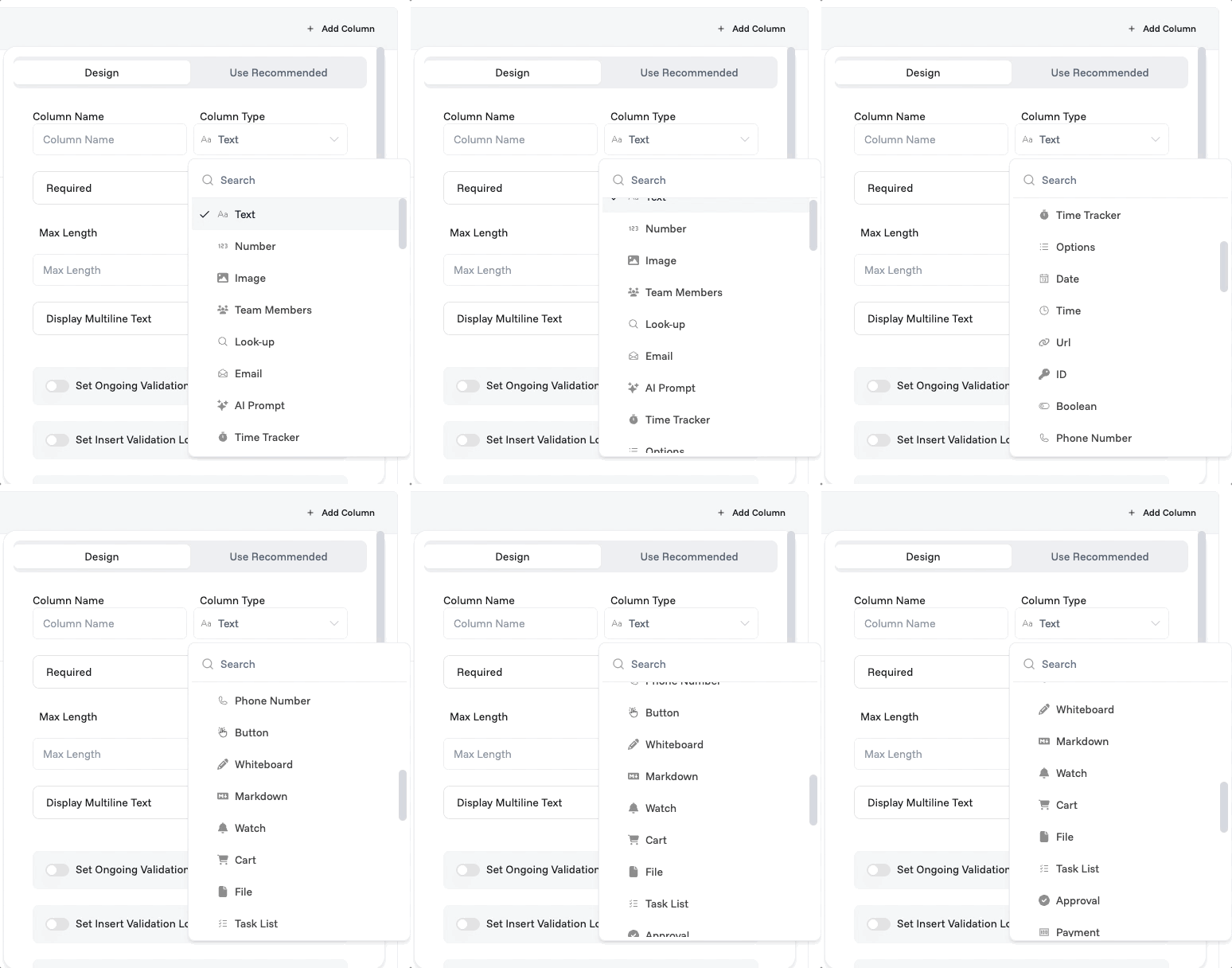
Types of Smart Columns
Standard Columns
The foundation of any dataset. Use these to capture, organize, and relate the everyday data your business runs on: names, numbers, dates, files, and people. Get these right and everything else builds on top of them.
Standard Columns
The foundation of any dataset. Use these to capture, organize, and relate the everyday data your business runs on: names, numbers, dates, files, and people. Get these right and everything else builds on top of them.
Interactive Columns
Interactive columns let users take action directly from a row. Trigger automations, track time, annotate with a whiteboard, or subscribe to updates, all without leaving your dataset.
App Columns
App columns embed complete business processes into a single cell. Handle payments, approvals, bookings, inventory, and more, with no external tools or custom development needed.
Common Settings
Most column types share a set of settings in the column editor, so they're listed once here instead of repeating under every type.
Required makes the field mandatory on all new records.
Set Ongoing Validation Logic runs a validation rule every time the value changes. For example, reject any Number below 0.
Set Insert Validation Logic runs a validation rule only when a new record is created.
Calculate Value defines a formula that auto-populates this field based on other columns.
Action Logics attaches logic that triggers when this column's value changes. Configure the trigger event, placement, and button label. Learn more in Logic Composer.
Enable Column Value Tracking logs a history of every change made to this field.
Show QR Code / Barcode displays the value as a scannable QR code or barcode.
Note: Some of these settings appear only for certain column types. When available, they appear in the column editor.
5-Minute Quick Start
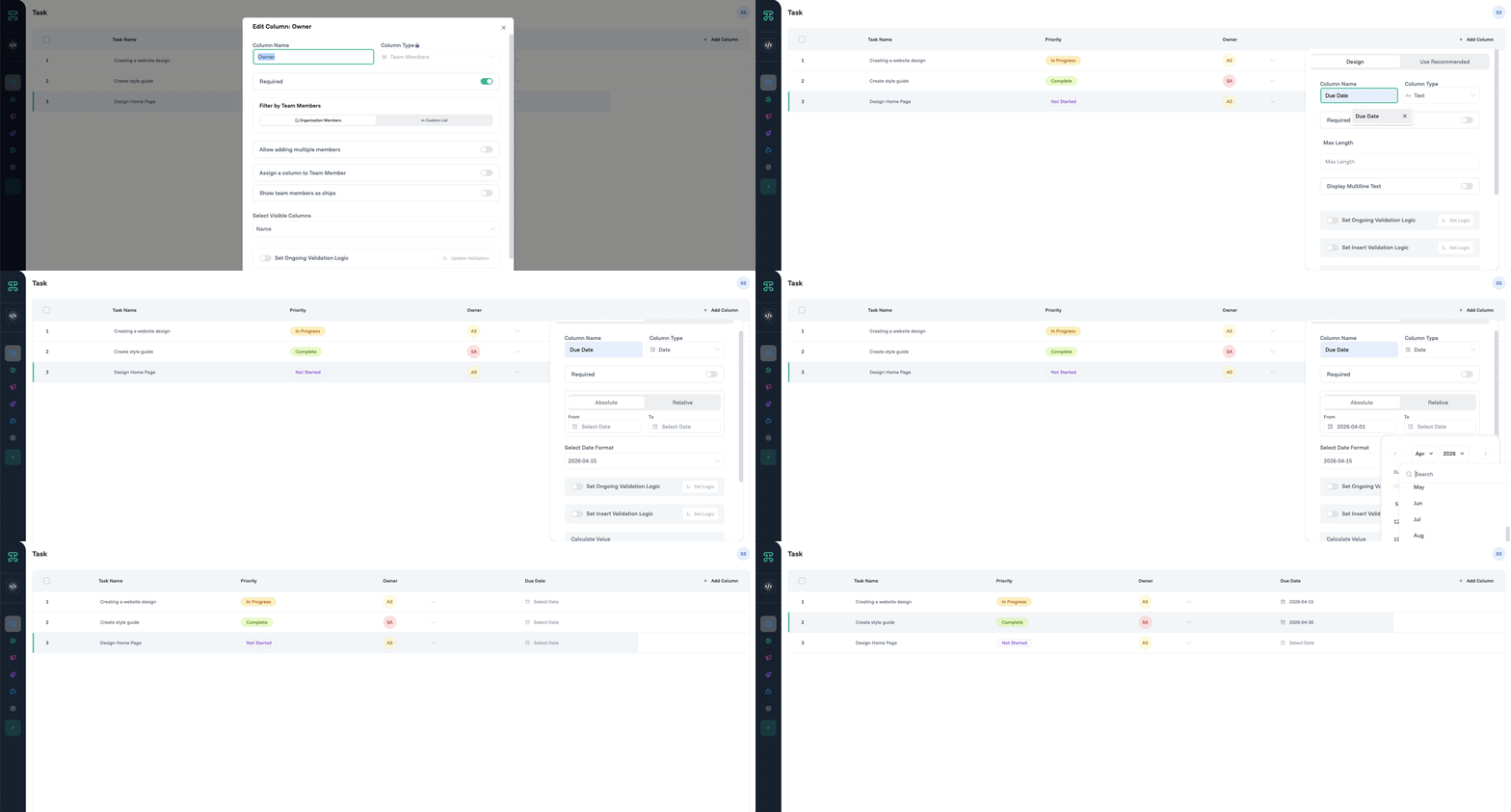
Transform your dataset in under 5 minutes with these three Smart Columns:
Add an Options column named "Status"
Set options:
Not Started(gray),In Progress(yellow),Complete(green)Scan your board in seconds and know exactly where everything stands.
Add a Team Members column named "Owner"
Enable Required to prevent orphaned tasks
See workload distribution at a glance
Add a Date column named "Due Date"
Set deadlines and track what's coming up.
Never miss a deadline again
Result: You've just built a basic task management system that's more powerful than most dedicated tools!
Next Steps
Master Proma's complete feature set by exploring these related capabilities:
Automation Engine - Connect column changes to complex multi-step workflows that orchestrate your entire business process
Logic Composer - Create conditional logic and calculations that power Smart Columns' intelligent behavior
Interfaces - Transform your column data into kanban boards, calendars, galleries, and custom visualizations
Have questions? Our team is ready to help at [email protected]